

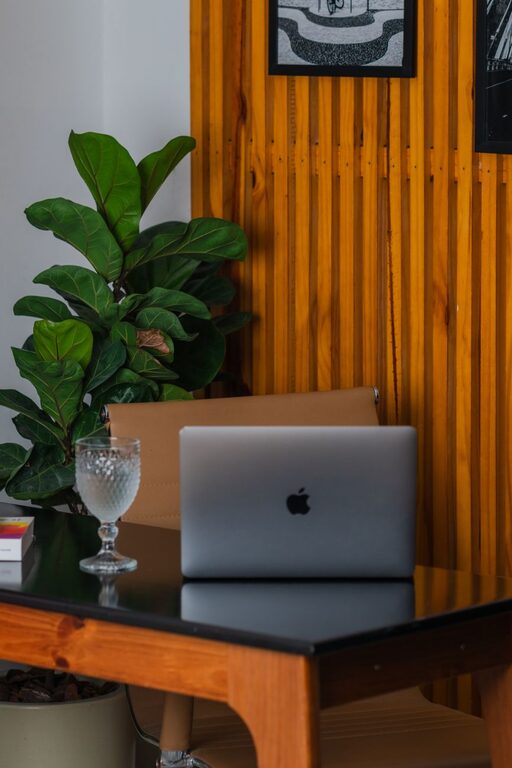
A workspace does not need a complete makeover to feel better. A few small changes can make your desk look cleaner, help you find what you need, and create a calmer setting for your next task.
The best part is that you can refresh your workspace in just ten minutes. This quick routine is designed for a home office, shared desk, study area, or any place where you work regularly. Set a timer, follow the steps below, and stop when the ten minutes are over.
Minute One: Clear the Main Work Area
Start by removing everything from the part of the desk where you normally write, type, or read. Move cups, papers, packages, cables, and other items to one side.
Do not worry about organizing everything yet. The goal is simply to create a clear work surface. A clean area gives you more room to work and makes the rest of the refresh feel easier.
As you clear the desk, place items into three quick groups:
– Keep on the desk
– Put somewhere else
– Throw away or recycle
Avoid making too many categories. You are refreshing the space, not completing a full organization project.
Minute Two: Remove Trash and Unneeded Items
Now deal with the obvious clutter. Throw away empty wrappers, used tissues, old notes, dried-out pens, and anything that no longer belongs in the workspace.
If you have papers that need attention, place them in one neat stack instead of sorting through every page. You can review them later. The same approach works for items that belong in another room. Put them near the edge of the workspace so you can return them after the timer ends.
This step creates a quick visual improvement. Even a small desk can look much more orderly when trash and unrelated items are removed.
Minute Three: Wipe the Surfaces
Use a suitable cloth or cleaning wipe to clean the main desk surface. Move around your keyboard, mouse, monitor stand, lamp, and other frequently touched items.
If your desk includes electronics, avoid spraying liquid directly onto them. Apply a small amount of cleaner to a cloth, if appropriate for the surface, and follow the care instructions for your equipment.
You do not need to clean every shelf or drawer. Focus on the areas you see and touch most often:
– Desktop
– Keyboard and mouse
– Phone
– Desk lamp
– Chair arms
– Monitor stand
A quick wipe removes dust and gives the workspace a noticeably fresher feel.
Minute Four: Reset Your Chair and Screen
Take a moment to adjust your chair so it feels comfortable and supports your usual working position. Move it back into place if it has drifted away from the desk.
Next, reset your screen. Close tabs and windows that you no longer need, minimize distractions, and leave only the tools needed for your next task. If your desktop is crowded with files, move them into a temporary folder or a clearly labeled folder for later sorting.
This simple digital reset can be just as helpful as clearing physical clutter. A less crowded screen makes it easier to begin work without searching through unnecessary windows.
Minute Five: Tame the Cables
Loose cables can make a workspace look untidy and may get in the way. Gather the cables you use most often and guide them toward one side or the back of the desk.
You can use a reusable cable tie, clip, or simple loop to keep each cable in place. Avoid bending cables sharply or pulling them tightly. The goal is to make them easier to manage, not to create a permanent installation.
Separate the cables you use every day from those you rarely need. Store extra chargers and cords in one small container, drawer, or pouch. Labeling them can save time later, especially if several cables look similar.
Minute Six: Put Daily Items Within Reach
Return only the items you use regularly. For example, you may want to keep a notebook, pen, water bottle, headphones, or planner nearby.
Place frequently used items in the easiest-to-reach locations. Less-used items can go in a drawer, cabinet, or storage box. This arrangement reduces movement and prevents your main work area from filling up again.
Try to keep the center of the desk open. A clear central area gives you flexibility, whether you are typing, writing, reading, or joining a video call.
Minute Seven: Create a Small Paper System
Paper can quickly become one of the biggest sources of desk clutter. Instead of leaving papers in scattered piles, create one simple place for them.
Use a folder, tray, or notebook for items that need action. You can also make two small groups:
– To do
– To file
Do not spend time deciding the final destination of every page. The purpose of this step is to contain loose papers so they do not spread across the desk.
If you receive many paper notes, consider keeping a single notebook for quick ideas and reminders. One reliable place is easier to maintain than several small stacks.
Minute Eight: Add One Useful Comfort
A refreshed workspace should be practical as well as tidy. Add one item that makes the space more pleasant or comfortable.
This might be:
– A small plant
– A coaster
– A soft desk mat
– A favorite pen
– A small lamp
– A calendar
– A reusable water bottle
Choose only one or two items. Too many decorative objects can quickly become another form of clutter. The best additions are useful, easy to care for, and suited to the way you work.
Minute Nine: Check the Lighting and Background
Look at the light around your workspace. If the area feels dim, move a lamp closer or open a curtain when possible. If sunlight creates glare, adjust the screen or change the angle of your chair.
For video calls, check what appears behind you. Move distracting items out of view and make sure the background looks intentional. You do not need a perfect setup. A clear wall, tidy shelf, or simple background is often enough.
This minute is also a good time to adjust anything that makes the space feel uncomfortable, such as a misplaced lamp, crowded corner, or awkward monitor position.
Minute Ten: Prepare for the Next Task
Finish by deciding what you will do first when you return to the workspace. Place the needed notebook, document, or tool where you can see it.
Write down one clear next step, such as:
– Reply to the first email
– Review the next page
– Draft the opening paragraph
– Make the first phone call
– Complete the next item on the list
A specific starting point removes the need to decide later. It also helps you take advantage of the clean, organized space immediately.
Before ending the timer, take a quick look at the desk. Return anything that is still out of place, then stop. The refresh is complete.
Keep the Refresh Going
A ten-minute reset works best when it becomes a small habit. You do not need to repeat the full routine every hour. Instead, use a short version at the end of the day:
- Remove trash.
- Return items to their usual places.
- Clear the center of the desk.
- Close unnecessary tabs.
- Set out what you need next.
You can also schedule a longer organization session once a week for drawers, files, supplies, and storage. The daily reset keeps clutter under control, while the occasional deeper session handles areas that need more attention.
A Workspace That Supports Your Routine
Refreshing your workspace is not about creating a perfect desk. It is about making the area easier to use. In ten minutes, you can remove distractions, improve comfort, and prepare yourself for the next task.
Start with the visible clutter, focus on the items you use most, and avoid trying to solve every organization problem at once. Small, consistent resets can make your workspace feel more welcoming and help you begin each work session with a clearer plan.